Workflow logs
Understanding the Workflow Logs Page
This page provides a comprehensive view of the execution details for a specific workflow. It allows users to assess performance, identify bottlenecks, and confirm successful completions.
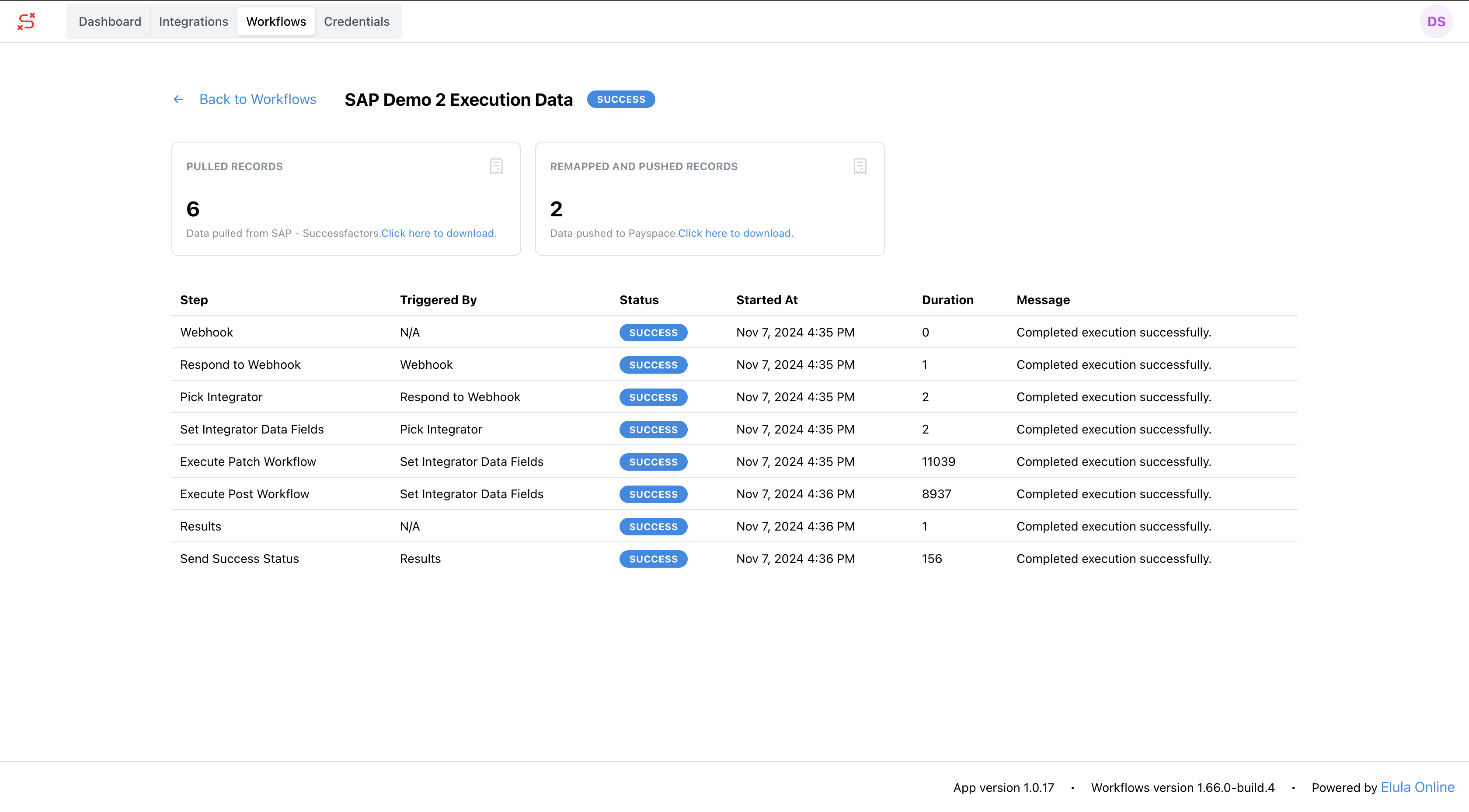
Key Sections
-
Summary Panel
- Pulled Records: Displays the number of records pulled from the source system. For example, 6 records pulled from SAP.
- Download Link: Allows you to download the pulled data for further review.
- Remapped and Pushed Records: Indicates how many records were successfully pushed to the destination system. For example, 2 records pushed to Payspace.
- Download Link: Provides access to the pushed data file.
- Pulled Records: Displays the number of records pulled from the source system. For example, 6 records pulled from SAP.
-
Execution Steps Table
- Step: Represents each stage of the workflow, such as Webhook, Execute Patch Workflow, or Send Success Status.
- Triggered By: Indicates the action or system that initiated the step (e.g., Webhook or Set Integrator Data Fields).
- Status: Highlights the result of each step:
- SUCCESS: Step completed successfully.
- ERROR: Step encountered an issue.
- Started At: Specifies the exact time the step began.
- Duration: Shows the time taken (in milliseconds) for the step to execute.
- Message: Provides additional details, such as Completed execution successfully.
Features & Benefits
-
Detailed Workflow Insights
Track every stage of execution to ensure no steps are missed or delayed. -
Error Identification
Quickly locate problematic steps by identifying steps with “ERROR” status. -
Performance Metrics
Evaluate the duration of each step to optimize workflow performance. -
Downloadable Data
Save and review pulled and pushed records for auditing or troubleshooting purposes.
Tips for Using Workflow Logs
- Review Duration for Bottlenecks: Long durations in specific steps, like Execute Patch Workflow, may indicate areas for improvement.
- Monitor Messages: Look for any inconsistencies or incomplete messages to identify potential issues.
- Download and Compare Records: Verify that pulled and pushed data are accurate and align with expectations.